
UnveilMap / Guides
How to bring your Fog of World data into UnveilMap
Already uncovered part of the world with Fog of World? You do not have to start from zero. UnveilMap can read your Fog of World data and add that area to your map, so the places you explored over the years are there from day one. This guide shows where to find the files, how to prepare them and what the import does.
UnveilMap is coming soon to Google Play for Android, free to download. Back to UnveilMap
- Fog of World folderIn your sync cloud storage
- Zip or .fwssSync folder or snapshot
- UnveilMapArea added to your map
What you can import
Fog of World stores your explored area as tiles in a database. UnveilMap understands two forms of it:
| Option | What it is | When to use it |
|---|---|---|
| Zip of the Sync folder | Your active Fog of World database, packed into one .zip file | The usual choice: it contains your current map |
| Zip of the whole Fog of World folder | The active database plus any other databases you created | If you used several databases and want all of them |
| Snapshot (.fwss) | A saved state of a database at one moment | If you only have a snapshot, or want an older state |
Before you start
A few minutes of preparation make the import smooth and keep your data safe:
- Let syncing finish. Open Fog of World and wait until it has synced, so the files in your cloud storage contain your latest map.
- Keep a copy of the zip. The zip you make is also a handy backup of your Fog of World map. Keep it on your computer after the import.
- Check space on your phone. A Sync folder with years of travel can take some space. Make sure the phone has room for the zip while you import it.
- Decide what to import. If you only ever used one database, the Sync folder is enough. If you used several, zip the whole Fog of World folder.
You can import again later, for example after more trips with Fog of World. Areas that are already on your UnveilMap map simply stay uncovered.
Step 1: Find your Fog of World data
Fog of World keeps its data in a folder called Fog of World in the cloud storage you chose for syncing. The structure looks like this:
Fog of World/
├─ Sync/                     ← your active database
└─ Databases/
   └─ <name>.fwdb/
      ├─ Sync/               ← another database
      └─ Snapshots/
         └─ 2025/03 MAR/*.fwss   ← snapshots by year and month
If you do not see the folder, check in Fog of World which cloud storage it syncs to, and make sure syncing has finished.
Step 2: Make a zip
Download the Sync folder, or the whole Fog of World folder, to your computer and compress it into one .zip file:
- Windows: right-click the folder and choose Send to → Compressed (zipped) folder.
- macOS: right-click the folder and choose Compress.
Copy the zip to your Android phone, for example into Downloads. A .fwss snapshot is already a single file, so you can copy it as it is.
Step 3: Import it into UnveilMap
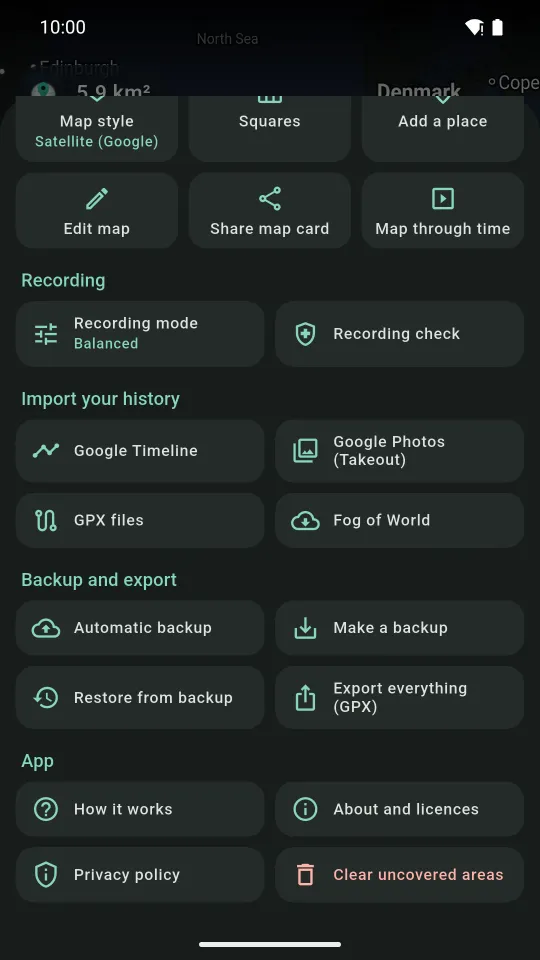
- Open UnveilMap and tap the Menu button.
- In Import your history, choose Fog of World.
- Pick the zip or the .fwss file.
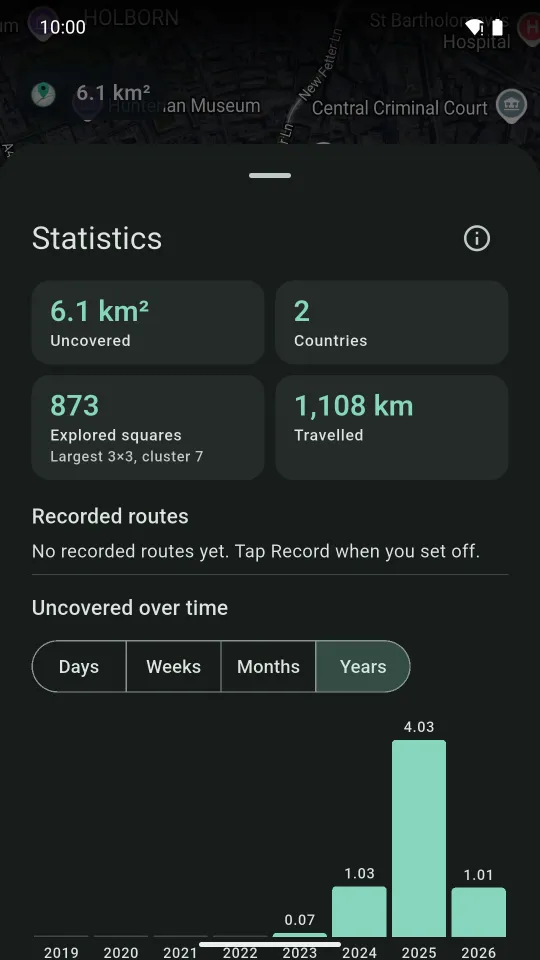
- UnveilMap shows which databases were imported and how many km² were added to your map, and the map moves to the imported area.
What the import adds
- Uncovered area. The fog is lifted wherever Fog of World had uncovered it, and the area counts towards your total in km².
- Fine detail. Fog of World keeps its map in a fine grid, with cells of about 10 metres or smaller, and UnveilMap keeps that detail, so streets stay sharp.
- No dates or routes. Fog of World data does not say when or how you travelled. That is why it adds area but not kilometres travelled, and it is not part of the GPX export. It is included in UnveilMap backups.
- Your files stay unchanged. UnveilMap only reads them.
Combine it with your other history
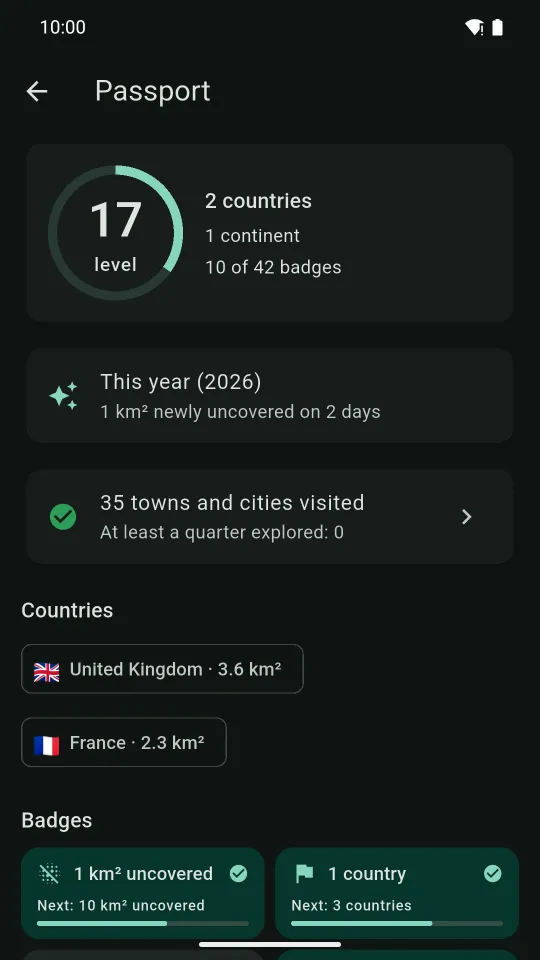
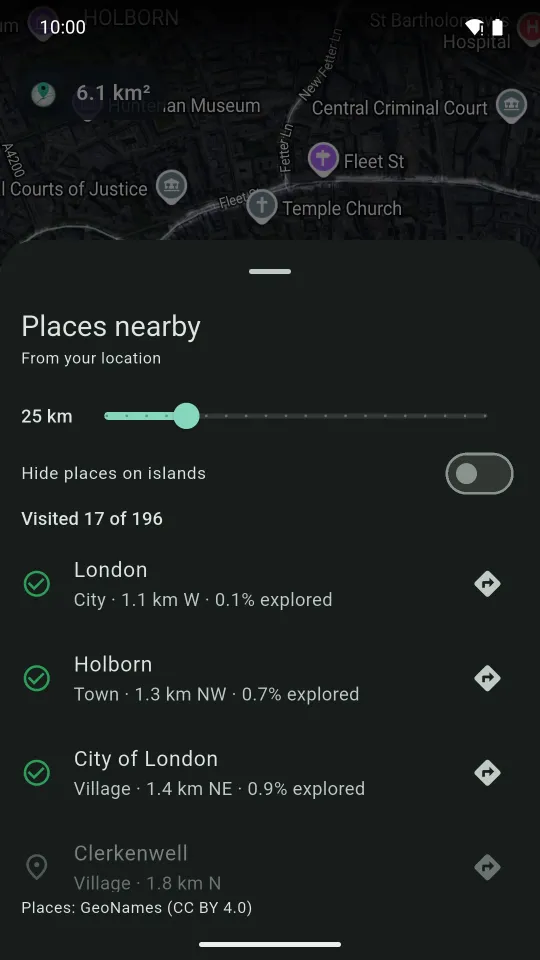
Fog of World data works well together with other sources. Import your Google Timeline for routes with dates, GPX files from sports apps, and places and dates from Google Photos. Then keep recording new trips in UnveilMap. Overlapping areas are simply uncovered once.
Troubleshooting
| Message or problem | What to try |
|---|---|
| “… has no Fog of World data” | The zip does not contain a database. Zip the Sync folder itself, or the whole Fog of World folder, not a parent folder or a single file. |
| Less area than in Fog of World | You may have imported another database or an older snapshot. Zip the whole Fog of World folder to import all databases. |
| I cannot find the Sync folder | Check which cloud storage Fog of World syncs to and wait until syncing has finished. |
Questions
Will importing change my Fog of World data?
No. UnveilMap only reads the files you choose. Your Fog of World data stays exactly as it was.
Do I need Fog of World installed on the same phone?
No. You only need the files: a zip of the Sync folder or a .fwss snapshot.
Can I import several databases?
Yes. A zip of the whole Fog of World folder can contain several databases, and UnveilMap reports which ones it imported.
Why does the imported area not add kilometres travelled?
Fog of World data is uncovered area without dates or routes. It adds to your area in km², but kilometres travelled come from recorded routes and imports with routes, such as Google Timeline or GPX.
Is anything uploaded?
No. Everything is read on your phone. There is no account and your map is stored only on your phone.
Can I keep using Fog of World after the import?
Yes. The two apps work independently. If you explore more with Fog of World later, make a new zip and import it again: new areas are added and areas already on your map stay uncovered.
Fog of World is a product of its respective owner. UnveilMap is not affiliated with Fog of World. Screens show example data from an invented traveller.